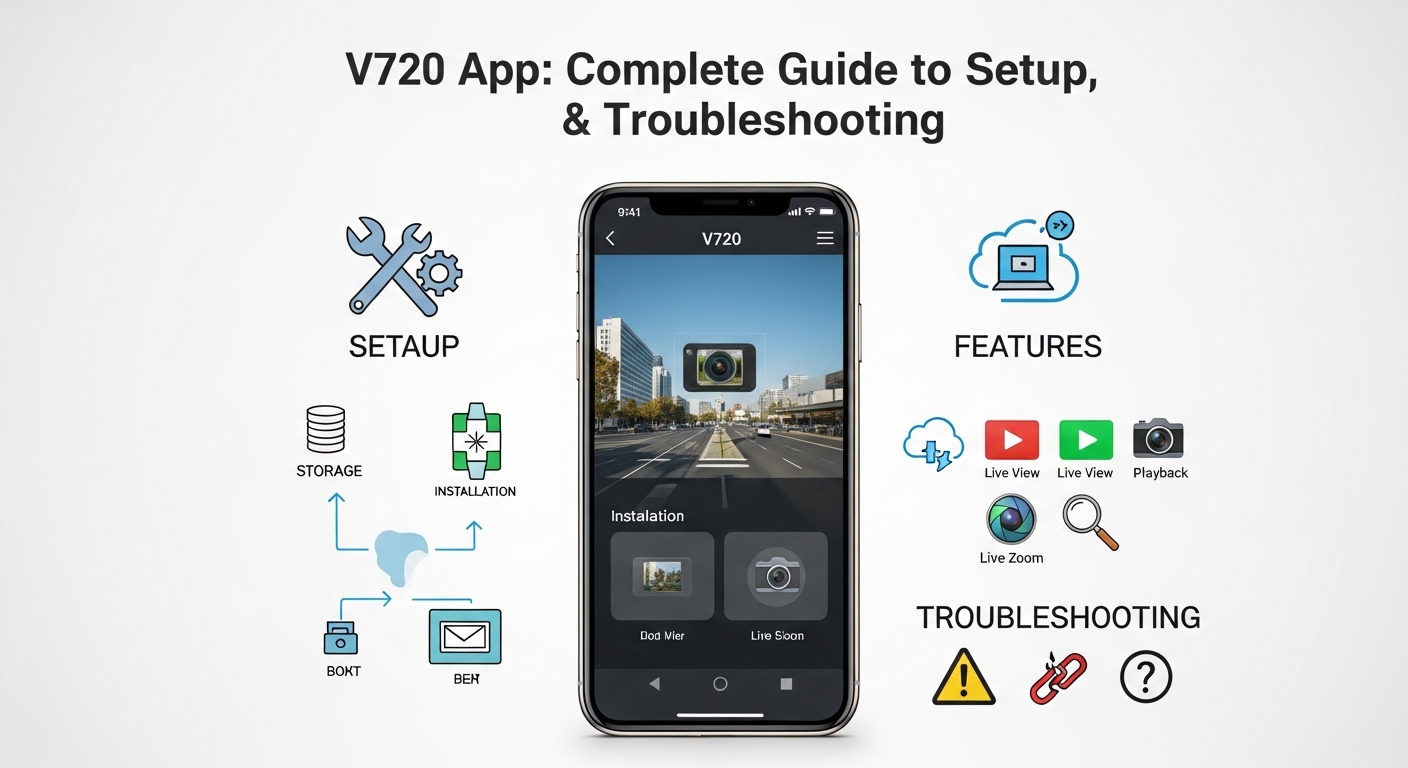
Imagine you have a special helper that lets you peek into your home or shop from far away, just like magic. The v720 app is that kind of helper. It works with small cameras to show you live pictures and old videos anytime you want. Many people use it to feel safe and check on things they care about.
This guide will walk with you like a friendly story. You will learn how to start with the v720 app, what it can do, and how to fix little problems if they pop up. Everything will feel easy and fun, step by step, because learning new things should make you smile. Let’s begin our adventure together.
What Is the V720 App and Why Do People Use It?
The v720 app is a simple tool that connects your phone to special cameras. These cameras can watch over your house, apartment, villa, shop, or office all day and night. After that, you open the app and see what is happening right now or what happened earlier.
People like it because it gives peace of mind. For example, a mom can check if her kids are playing safely at home while she is at the market. A shop owner can see if everything is quiet after closing time. This means you do not have to worry as much when you are away. Over time, many families and small business owners have found it helpful for keeping an eye on important places.
Another thing is that the app works with cloud storage. This lets videos stay safe even if something happens to the camera itself. Now let’s talk about getting ready before you begin.
Getting Ready: What You Need Before You Start
Before you touch the v720 app, gather a few simple things so the journey goes smoothly. You will need a smartphone that can connect to the internet. You also need a small camera that works with this app, usually the kind sold for home watching.
Make sure your home Wi-Fi uses the 2.4 GHz band because many of these cameras only like that one. If your router has both 2.4 and 5 GHz, turn off the 5 GHz for a little while during setup. This makes the connection easier.
In addition, keep your camera charger ready and find a good spot to place the camera where it can see clearly. For example, put it high on a wall so it looks over the whole room without anything blocking the view. That’s why planning ahead saves time later.
Now that everything is ready, let’s move to the exciting part of putting the app on your phone.
How to Download and Install the V720 App
Finding the v720 app feels like picking a new game from the store. On an Android phone, open the Google Play Store and type the name carefully. On an iPhone, go to the App Store and search the same way.
After you find it, tap the button to get it for free. The download does not take long if your internet is good. Once it finishes, open the app gently.
Next, the app may ask for permission to use your location, camera, or microphone. Say yes to the ones it needs because this helps it talk nicely with your camera. This means the app can find nearby devices and show clear pictures.
Over time, you might see updates for the app. Always install them when they appear because new versions often fix small bugs and add nicer ways to use it.
Step-by-Step Setup of Your Camera with the V720 App
Setting up feels like making a new friend. First, turn on your camera by pressing the power button. Many cameras have a small light that blinks to show they are awake.
Open the v720 app and look for the “Add Device” or plus sign button. Tap it to start. The app might ask you to turn on Bluetooth on your phone. Do that because Bluetooth helps the phone and camera say hello to each other at the beginning.
After that, the app will search for your camera. If it finds it, follow the simple pictures on the screen. Sometimes you need to scan a QR code that is printed on the camera or in its box. Hold your phone steady over the code until the app beeps or shows a check mark.
Now enter your Wi-Fi name and password carefully. Remember to use the 2.4 GHz network here. The camera will think for about thirty to sixty seconds while it connects. You will see a message when it is done. This means your camera is now part of your phone family.
For example, one little story is about a boy who set up his camera in his backyard. He followed these steps and soon saw his dog playing outside right on his phone screen. It made him so happy.
Exploring the Main Screen and Basic Controls
Once your camera is added, the main screen of the v720 app shows a nice list of your devices. Tap the picture of your camera to open the live view. You will see moving pictures from right now, just like watching a little TV.
At the bottom or side, you will find friendly buttons. One lets you take a snapshot, which saves a still picture to your phone. Another starts recording a short video clip that you can keep.
In addition, there is usually a sound button. Tap it to hear what is happening or to talk through the camera if it has a speaker. This feels like having a magic window that lets you both see and speak.
The app also shows the time and date clearly so you always know when you are looking. Smooth controls make it easy to move the view if your camera can turn.
Using Live View and Checking Older Videos
Live view is the part where you watch things as they happen. The pictures come quickly if your internet is strong. You can zoom in by pinching the screen with two fingers, just like looking closer at a photo.
After you finish watching live, go to the history or playback section. Here you can pick a day and time to see what the camera recorded earlier. Videos are stored in the cloud, which means they stay safe even if your phone loses power.
For example, you can scroll through the timeline like reading a storybook. Stop at any moment to watch what happened. This helps you understand patterns, such as when the mailman usually comes or when the lights turn on at night.
Another thing is that some cameras save videos only when they notice movement. This saves space and makes it easier to find important moments instead of watching hours of quiet time.
Setting Up Alerts So You Never Miss Anything
Alerts are like friendly reminders from the app. In the settings for your camera, look for the alarm or notification part. Turn it on, and the app will send a push message to your phone when something moves in front of the camera.
You can choose how sensitive the alert should be. For a quiet room, make it less sensitive so it does not wake you for every small shadow. For a busy shop, make it more sensitive.
In addition, some versions let you get alerts through other ways, like a message service. This means even if your phone is on silent, you still know something is happening.
Over time, you can learn which alerts matter most to you and adjust them. That’s why the v720 app feels personal, because it learns what you care about watching.
Sharing Your Camera with Family or Helpers
Sometimes you want others to see too. The v720 app lets you share your camera safely. Go to the device settings and find the share option. You can send an invitation through a message or code.
The person who receives it will need to download the app and accept your invite. After that, they can view the live pictures and history, but you stay in control. You can stop sharing anytime.
For example, a family can all check on grandma’s house together. This brings everyone closer even when they live in different places. It is a nice way to help each other without extra work.
Useful Extra Features That Make Life Easier
Beyond watching and alerts, the v720 app has other helpful tools. Some cameras let you turn on night vision automatically when it gets dark. The pictures stay clear even without lights.
Another feature is two-way talk. If your camera has a microphone and speaker, you can say hello and hear the answer back. This is great for telling your pet it is okay or asking someone at the door a question.
In addition, you can change the picture quality in settings. Lower quality uses less data, which is nice when you are away from home Wi-Fi. Higher quality shows more details when you have strong internet.
These small extras grow with you as you use the app more. Each one adds a new way to feel connected to the places you care about.
Keeping Everything Safe and Private
Safety matters a lot with cameras. Use a strong password for your app account and never share it with strangers. The v720 app usually lets you set extra protection like a PIN or face lock on your phone.
Also, think about where you place the camera. Avoid putting it in private spots like bathrooms where people expect quiet time. Tell family members that a camera is watching so they feel comfortable.
Over time, check your shared devices list and remove anyone you no longer want to see. This keeps your watching simple and respectful. That’s why good habits make the whole experience better for everyone.
Common Problems and Easy Fixes
Even the best tools can have small hiccups. If the camera will not connect to Wi-Fi, first check that you are using the 2.4 GHz network. Many people forget this and switch their phone to it, then try again.
If the live view is frozen or slow, move closer to your router or use better internet. Restarting the camera and phone often solves little glitches because it clears the old connection and starts fresh.
Another common thing is the camera not showing in the app. Try turning Bluetooth off and on, or reset the camera by holding its reset button for ten to fifteen seconds until the light changes color. After that, add the device again like it is brand new.
For alerts that do not come, make sure notifications are allowed for the app in your phone settings. Also check if the camera’s motion detection is turned on properly.
If videos from the past are missing, wait a little while because cloud saving can take time. Or check if you have enough cloud storage space if your plan has a limit.
These fixes are like gentle nudges. Most problems go away with one or two tries, and you learn more each time.
Tips for Getting the Best Pictures Every Time
To make pictures look their best, clean the camera lens softly with a cloth. Dust can make everything blurry. Place the camera away from bright windows so sunlight does not wash out the view.
At night, test the night vision in a dark room first. Some cameras need a tiny bit of light to work better. You can add a small night light if needed.
In addition, update the app and camera software when the app tells you. New updates often bring clearer pictures and smoother watching.
For example, one family moved their camera a few inches higher and suddenly saw the whole yard instead of just the grass. Small changes can bring big improvements.
Growing with the V720 App Over Time
As weeks pass, you will discover your own favorite ways to use the app. Maybe you start checking only important times of day. Or you set special zones so the camera alerts only when someone enters a certain area.
Many users also like to download important clips to their phone or computer for keeping memories or records. This adds another layer of safety.
The more you explore, the more the v720 app feels like a helpful companion rather than just a tool. It quietly supports your daily life without getting in the way.
In the end, remember that technology works best when we use it kindly and thoughtfully. The v720 app can help you stay connected and safe, but it is only one part of caring for the people and places around you.
This guide has walked you through the basics of the v720 app, from first steps to fixing small troubles. Each part builds on the last so you can feel confident trying it yourself. Learning something new opens doors to feeling more secure and in control.
Disclaimer:
This article is for informational and educational purposes only. It does not promote, advertise, or recommend any specific service, website, or tool, including the v720 app. Readers should do their own research and exercise caution before using any online tools or services. Always follow local laws and respect privacy when using surveillance devices.
Explore More:
Best HGV Sat Nav App in 2026 (Top Truck GPS Apps Compared)
Self Esteem App: Build Confidence & Feel Better Daily
AskMyGP App: Complete Guide for Online GP Appointments
About the Author