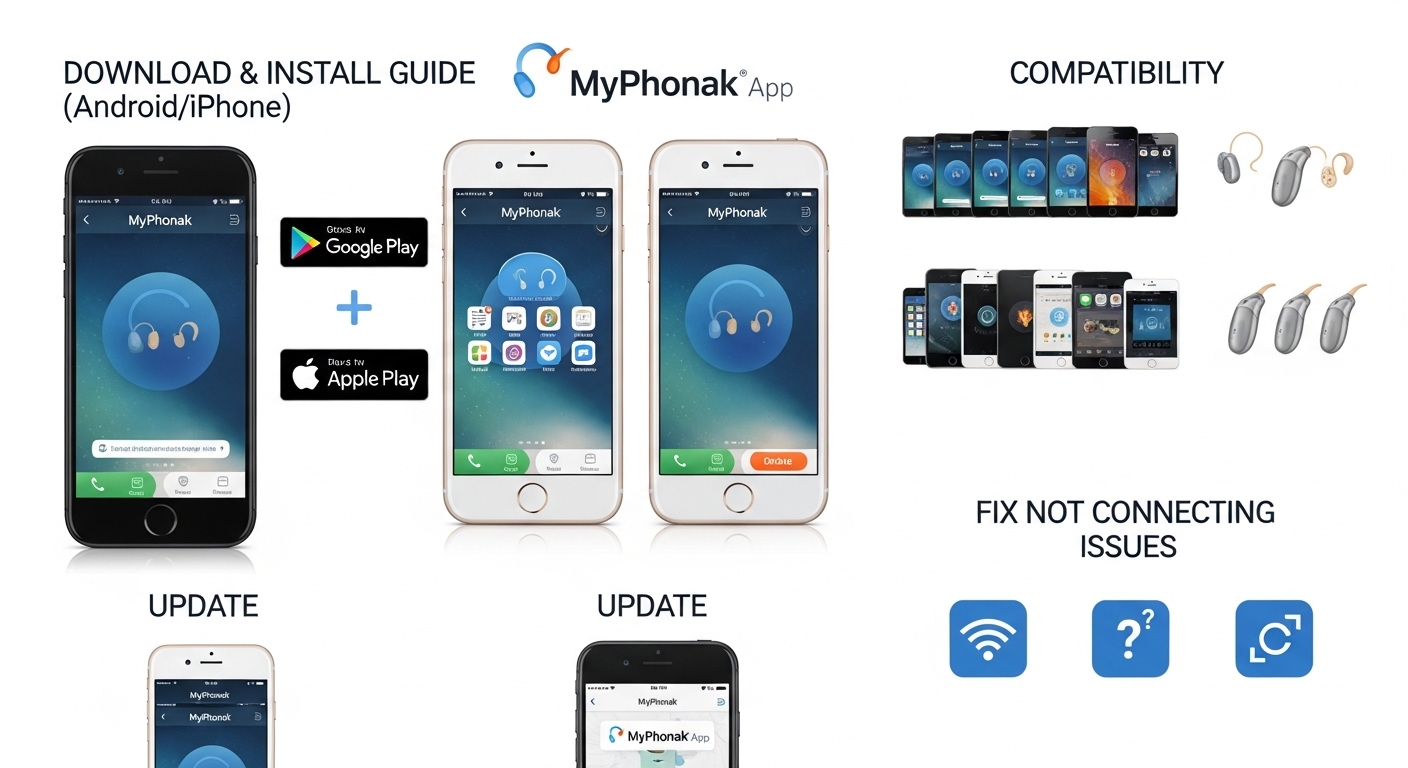
The MyPhonak app helps people who wear Phonak hearing aids control their devices easily from a smartphone. Many users want better sound in daily life, and this app makes that possible. You can change volume, pick different listening programs, and even track simple health information. Because hearing aids connect through Bluetooth, the app gives you quick access without touching the aids all the time.
This guide explains everything in clear steps. You will learn how to download and install the MyPhonak app on Android or iPhone. It also covers compatibility checks, how to update the app, and ways to fix common problems like the MyPhonak app not connecting to hearing aids. After reading, you will feel confident using the app every day.
What Is the MyPhonak App?
The MyPhonak app is a free tool made for Phonak hearing aid users. It lets you personalize your hearing experience right from your phone. For example, if you sit in a noisy restaurant, you can quietly adjust settings to hear voices better. Another thing is tracking health data, such as steps or activity levels, when your hearing aids support it.
Over time, the app has grown with new features. You can create custom programs for different situations like watching TV or talking on the phone. In addition, it supports remote help from your hearing care professional through video calls. This means you do not always need to visit the clinic for small changes.
Many people like the simple design. Widgets on your home screen show battery level or current program at a glance. That’s why the MyPhonak app feels helpful for everyday use. It works with compatible Phonak hearing aids that have Bluetooth. Always remember, the app is only for Phonak devices.
MyPhonak App Compatibility: Check Before You Start
Before you download MyPhonak app, make sure your phone and hearing aids can work together. This step saves time and avoids frustration later.
For iPhone users, the MyPhonak app for iPhone needs iOS version 15 or newer. Most iPhones from iPhone 6s onward support this after an update. Your phone must also have Bluetooth low energy, which almost all modern iPhones do.
For Android, the MyPhonak app for Android works on devices with Android 8.0 or higher that are Google Mobile Services certified. It needs Bluetooth 4.2 at least. Many popular phones like Samsung, Google Pixel, and others meet these rules. However, some older or budget phones may not.
Another important point is hearing aid compatibility. The app pairs with many Phonak models, such as Audéo, Naída, Sky, and Virto series from recent generations like Lumity or Infinio. If you have very old Phonak aids without Bluetooth, the app will not connect.
To check easily, visit the official Phonak compatibility tool on their website and enter your phone model. This quick test shows if phone calls, streaming, and the app will work well. In real life, one user with a new Samsung phone found full support after checking, while an older tablet did not. That’s why compatibility matters so much.
If your setup matches, you can move forward with confidence.
MyPhonak App Download and Install Guide for Android
Downloading the MyPhonak app on Android is straightforward when you follow these steps. First, open the Google Play Store on your phone. Next, type “myPhonak” in the search bar. The official app from Sonova will appear at the top.
Tap on it to see details like size and ratings. Then press the Install button. The MyPhonak app Android download happens quickly on a good internet connection. After that, the app installs automatically. Once finished, tap Open to start it.
During first setup, the app may ask for permissions like Bluetooth and location on Android. Allow them because Bluetooth pairing needs these for safety and smooth connection. Also, connect your phone to Wi-Fi or mobile data before you begin.
Here is a simple real-life example. Imagine you just got new Phonak hearing aids. You sit at home, open Play Store, search, and install within two minutes. After that, you turn on Bluetooth and follow on-screen steps. Many users finish the MyPhonak app install Android process without any trouble.
If you face any download error, check your internet or storage space. Clearing some space often helps.
MyPhonak App Download and Install Guide for iPhone
The process for iPhone feels very similar but uses the Apple App Store. Open the App Store on your iPhone. Search for “myPhonak”. The official app will show with a clear description. Tap Get or the cloud icon if you downloaded it before.
Enter your Apple ID password or use Face ID when asked. The MyPhonak app for iPhone downloads and installs fast. After installation, tap Open.
On iOS, the app may ask you to accept privacy terms and choose data sharing options. Read them carefully, then proceed. You can change sharing settings anytime later in the app. Also, make sure Bluetooth is on and your phone has a stable internet connection.
For example, one person with an iPhone 14 followed these steps while sitting in a café. Within minutes, the app was ready, and pairing started smoothly. This MyPhonak app install works best when you update your iOS first if needed.
Setting Up the MyPhonak App: Step-by-Step User Guide
Now that the app is on your phone, setup is the next natural step. Open the MyPhonak app. You might see a short welcome tour. You can take it for helpful tips or skip it if you want to start fast.
After that, agree to the privacy notice and terms. This is required to use the app safely. Then choose if you want to share anonymous usage data to help improve future versions. Many people say yes because it supports better updates over time.
Next comes account creation. You can sign up with email or phone number. Follow the instructions to verify. If your hearing care professional sent an invitation code, enter it when asked. This unlocks extra features like remote support in some places.
After account setup, the app guides you to pair your hearing aids. Turn your hearing aids off and on to start pairing mode. The app will search for them. When you see your aids listed, tap to connect. For two aids, both should appear. Select pair for each one.
In addition, you can explore the home screen. It shows current program, volume, and battery if your aids are rechargeable. From there, you can adjust settings or create custom programs. For instance, save a “quiet home” program with softer sounds.
This MyPhonak app user guide flow feels natural once you do it the first time. Practice a few adjustments, and it becomes easy.
How to Update the MyPhonak App
Keeping the app fresh is important for best performance. Updates often bring bug fixes, new features, and better compatibility.
On Android, open Google Play Store, go to My apps & games, and look for MyPhonak. If an update shows, tap Update. On iPhone, open App Store, tap your profile, and scroll to find the app. Press Update if available.
You can also turn on automatic updates in phone settings so the app stays current without effort. After updating, open the app and check for any new messages or features. Sometimes hearing aid firmware updates appear too. Follow on-screen steps carefully if prompted.
For example, recent updates added easier navigation and remote firmware options for certain models. That’s why regular updates help your hearing experience stay smooth.
Fixing MyPhonak App Not Connecting Issues
Sometimes the MyPhonak app not connecting to hearing aids happens, but simple fixes often solve it. Start with basic steps that work for many users.
First, restart your hearing aids. For rechargeable ones, press the button until lights change, then turn them back on. For battery models, open and close the doors. Next, turn Bluetooth off and on in your phone settings.
After that, force close the app and reopen it. On iPhone, swipe up from the bottom and swipe the app away. On Android, use the recent apps screen to close it. Restart your phone if needed.
Another common fix is to forget the Bluetooth pairing in phone settings and repair through the app. Go to Bluetooth menu, find your hearing aids, tap forget, then return to the MyPhonak app and follow pairing steps again.
If the MyPhonak app not connecting to hearing aids continues, try these extra tips. Make sure no other Bluetooth devices interfere. Keep your phone and aids close, within a few feet. Check for phone software updates too.
In real life, one Android user fixed the issue by clearing app cache and reinstalling. An iPhone user restarted everything and re-paired successfully. For MyPhonak app problems, avoid rushing. Take one step at a time.
If nothing works, contact your hearing care professional. They can check settings or provide more help.
Common MyPhonak App Problems and How to Avoid Them
Beyond connection issues, other small problems can appear. For instance, the app may show low battery warnings even when aids have power. This often happens if Bluetooth signal is weak. Move closer to your phone to improve it.
Another thing is slow response after a big phone update. In that case, update the MyPhonak app right away. Some users notice widgets not refreshing. Restarting the phone usually fixes this.
To avoid MyPhonak app problems, keep your phone and aids clean and charged. Do not install the app from unknown sources. Always use official stores for MyPhonak app Android download or iPhone version. Also, read app messages carefully during setup.
Over time, good habits like regular updates prevent many issues. Think of the app like a helpful friend that needs occasional care to work its best.
MyPhonak App Reviews and Real User Experiences
Users often share positive thoughts about the MyPhonak app. Many say it makes daily adjustments simple and quick. Features like custom programs help in busy places such as markets or family gatherings. Health tracking feels motivating for some because it links hearing with overall activity.
Of course, experiences vary with phone models and hearing aid types. Most reviews highlight easy Bluetooth connection once set up. A few mention needing help the first time, but after that, it runs smoothly.
The app earns good ratings because it focuses on real needs like clear sound and convenient control. Hearing aid users appreciate the ability to change settings without asking others for help.
Frequently Asked Questions About the MyPhonak App
Here are answers to common questions people ask.
Can I use the MyPhonak app without creating an account?
You need a basic account for full features, but pairing may start without one in some cases. Creating one unlocks more options safely.
Does the MyPhonak app work with all smartphones?
No, only compatible ones with the right iOS or Android version and Bluetooth. Always check the official tool first.
How do I pair my hearing aids again if connection drops?
Restart aids and phone, then go to the Devices section in the app and follow pairing instructions.
Is the MyPhonak app free?
Yes, downloading and using basic features cost nothing. Some advanced remote services depend on your provider.
What should I do if the app shows errors during update?
Restart your phone and try again. Make sure you have a strong internet connection.
Can I use the app on both Android and iPhone at the same time?
You can install it on multiple phones, but active pairing usually works with one main device.
Why does my app ask for location permission?
On Android, it helps with Bluetooth discovery. You can manage permissions in phone settings.
Conclusion
Learning about the MyPhonak app opens up better control over your Phonak hearing aids. From downloading on Android or iPhone to fixing connection troubles, each step builds a smoother hearing journey. Compatibility checks, careful setup, regular updates, and simple troubleshooting make the difference.
Remember, the app grows with new improvements, so stay curious and keep it updated. With practice, you will enjoy clearer sounds and easier adjustments every day. Take your time, follow the steps, and reach out to your hearing professional when needed. Better hearing is within reach, one simple tap at a time.
Disclaimer:
This article provides general information based on publicly available details about the MyPhonak app as of 2026. It is not official advice from Phonak or Sonova. Steps, compatibility, and features may change with updates. Always check the official Phonak website or your hearing care professional for the latest instructions. This guide does not replace professional medical or technical support. Results can vary by device and individual setup. We are not affiliated with any brand or service.
Explore More:
Oticon Companion App Download (Android & iPhone) – Guide, Update, Compatibility & Fix Problems
TalkTalk Mail App Download Free for Android, iPhone, iPad & Windows 10 (Latest Version)
About the Author