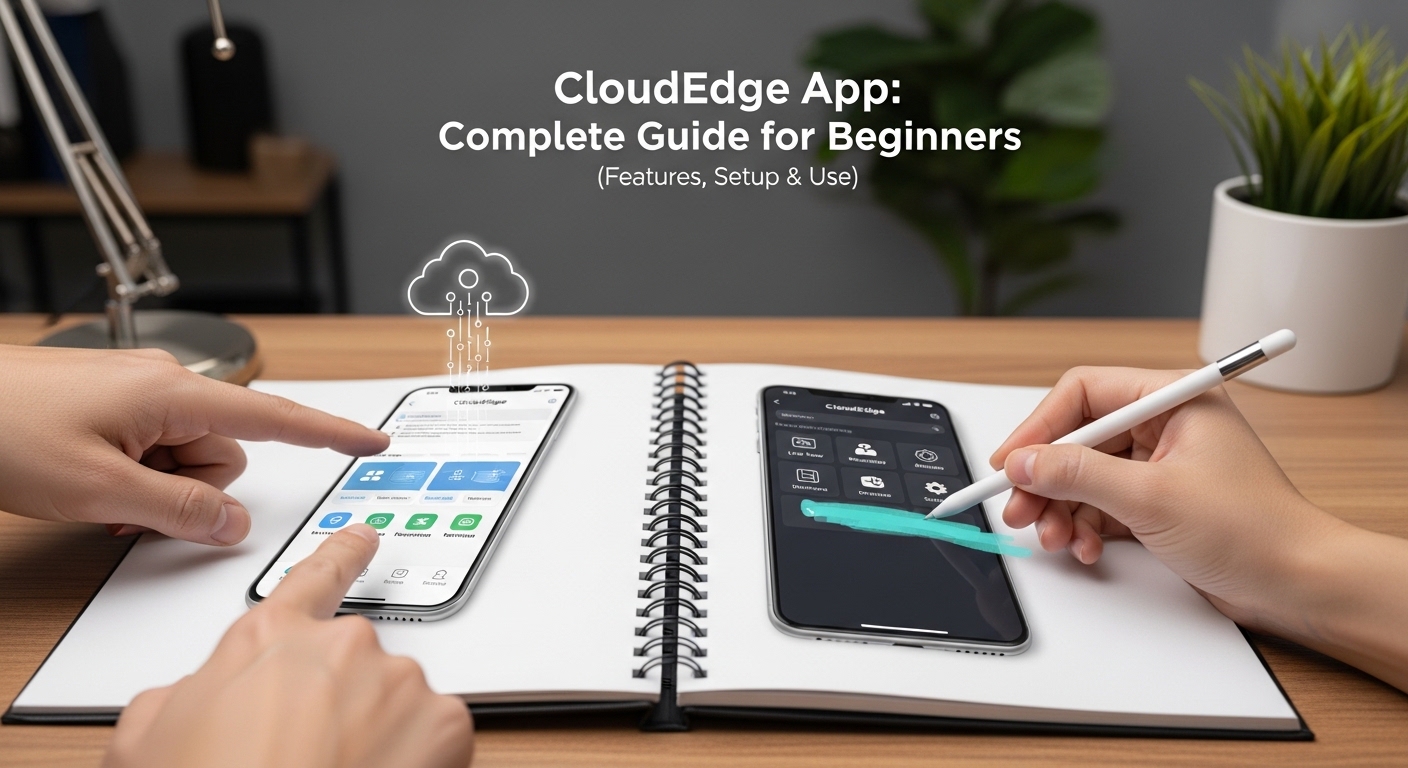
The CloudEdge app helps people watch their home or office from anywhere using a smartphone. Many families use it with security cameras to feel safe and stay connected.
This complete guide explains everything beginners need to know in simple steps. You will learn what the app does, how to set it up, and how to use its main parts.
Even if you have never used a smart camera app before, you can follow along easily. The guide uses clear words and real-life examples so you understand right away.
What Is the CloudEdge App?
The CloudEdge app is a free mobile tool that works with many Wi-Fi security cameras and video doorbells. It lets you see live video from your camera on your phone.
You can check what is happening at home while you are at work, on vacation, or even in another room. In addition, the app sends quick messages when it notices movement. This means you get an alert right away if someone walks near your door or in your yard.
For example, imagine you left your child at home with a babysitter. With the app, you can open your phone and see the live picture in clear quality. Over time, many people find this peace of mind very helpful for daily life.
Another thing is two-way talk. You can speak through the app, and the person near the camera can hear you. That’s why it feels like you are right there talking to your family or delivery person.
The app works on both Android phones and iPhones. It is simple and user-friendly, so beginners do not feel lost. Because it connects cameras to the internet, you can watch from anywhere with a good phone signal.
Why Beginners Like the CloudEdge App
Many new users choose the CloudEdge app because it makes home watching easy and safe. First, it shows clear pictures, often in high definition. You do not miss small details like a face or a package at the door.
Next, it saves videos so you can look back later. For instance, if your dog knocked something over while you were away, you can play the recording and see exactly what happened.
Also, the app helps you share your camera with trusted people, such as your spouse or parents. They can view the same live feed without making a new account. This feature is great for families who want to stay together even when apart.
In 2026, the app still focuses on basic, reliable tools that work well every day. It does not add too many complicated options that confuse beginners. That’s why it stays popular with people who just want simple security at home or in a small shop.
Main Features of the CloudEdge App
The CloudEdge app has several helpful features that work together smoothly.
Live view is the most used part. You tap on your camera in the app, and you see real-time video. The picture usually looks sharp, and you can move the camera if it turns left or right.
Motion detection is another important feature. The camera senses movement and sends a push notification to your phone. For example, when a friend rings your doorbell, you get an alert and can answer from anywhere. You can also adjust settings so it ignores small things like leaves blowing in the wind. This reduces extra messages.
Two-way audio lets you talk and listen. Hold the speak button, say hello, and the sound comes out of the camera. Many parents use this to remind kids to do homework or to greet visitors.
Playback and recording help you check past events. Videos can save on a memory card inside the camera or in cloud storage if you choose that option. You pick a date and time, then watch what happened. This is useful after a small issue at home.
Snapshot and video clip options let you save single pictures or short movies quickly. You can share them with family through your phone’s messages.
Device sharing is easy too. You send an invitation by email or code, and the other person accepts it. After that, they see the live view and recordings without full control of settings.
In addition, the app has basic settings for sound, night vision, and alerts. Night vision turns on automatically when it gets dark, so you still see clear black-and-white pictures.
All these features connect in one clean screen. Because everything stays simple, beginners learn fast and enjoy using the app daily.
How to Download and Install the CloudEdge App
Getting started with the CloudEdge app takes only a few minutes.
First, open the app store on your phone. On an iPhone, go to the App Store. On an Android phone, go to Google Play. Search for “CloudEdge” and choose the official one from the developer.
Tap the get or install button. The app downloads and installs automatically. Make sure your phone has enough space and a good internet connection.
After installation, open the app. You will see a welcome screen. Now you are ready for the next step, which is making your account.
Creating Your Account in the CloudEdge App
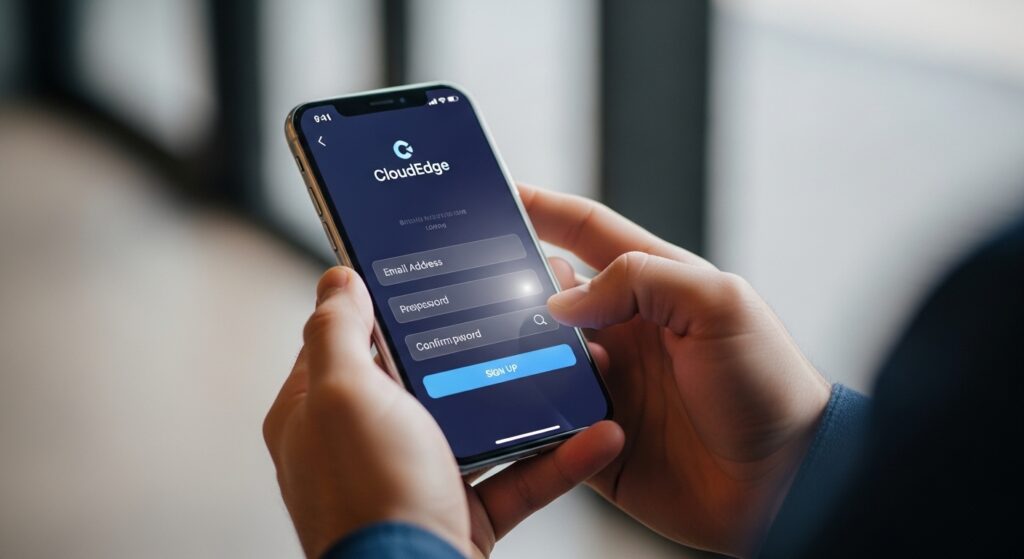
A good account keeps your videos private and safe.
Open the app and tap the sign-up or register button. You can use your email address or phone number. Enter a strong password with letters and numbers.
The app will send a code to your email or phone. Type that code to confirm. This step protects your information.
After that, log in with your new details. Choose the right country if asked. Now your account is ready, and you can start adding cameras.
Many beginners feel happy after this part because the process is short and clear.
Setting Up Your Camera with the CloudEdge App
Adding a camera is the exciting part. Make sure your camera is a compatible Wi-Fi model, usually for 2.4 GHz networks only.
Plug in the camera with the right power adapter. Wait for the light to flash red slowly. This means it is ready to connect.
In the app, tap the plus sign to add a device. You have two main ways: scan QR code or use AP mode.
For QR code: The camera shows a code on its light or sound. Hold your phone about 15 centimeters from the camera lens. The app scans it, and the connection starts. Your phone must stay close to the router during this time.
For AP mode: If QR does not work, choose this option. The camera creates its own small network. Your phone joins it for a short time, then switches back to your home Wi-Fi.
After a few moments, you hear a success sound, and the light turns blue or steady. The camera now appears in your app list. Give it a name, like “Front Door” or “Living Room,” so you remember which one it is.
Test the connection by tapping live view. If the picture comes clearly, you have done it right. If not, check your Wi-Fi signal and try again.
Daily Use: Watching Live and Getting Alerts
Once your camera is added, using the CloudEdge app becomes part of your routine.
Open the app and see your device list. Tap the play button on the camera you want. The live video starts right away. You can zoom in or take a quick snapshot.
When motion happens, your phone makes a sound and shows a message. Open the alert to see a short clip or picture. This helps you act fast if needed.
For example, one user saw a neighbor’s cat on the porch and smiled instead of worrying. Another checked when the delivery person left a box safely.
You can turn alerts on or off for certain hours, like quiet time at night. Over time, you learn the best settings for your home.
Viewing Past Videos and Saving Moments
The playback section stores your history.
Go to the record or history tab. Choose the date and camera. The app shows a timeline with colored marks for motion events. Tap any part to play the video.
If you have a memory card in the camera, videos save locally. This means no extra monthly cost. You can also look at cloud storage if you added that service.
Edit options let you cut short clips or save favorite pictures. Many families enjoy looking back at happy moments, such as kids playing in the yard.
Sharing Your Camera Safely
Sharing is useful for families and small teams.
In device settings, find the share option. Enter the email of the person you trust or create a QR code for them.
They download the app, make their own account if needed, and accept the invitation. After that, they can watch live view and recordings.
Remember to share only with people you know well. You can remove sharing anytime if plans change.
This feature helps when grandparents want to see the baby during the day or when a shop owner lets staff check the store.
Common Setup Tips and Mistakes to Avoid
Beginners sometimes face small problems, but simple fixes usually work.
First, always use 2.4 GHz Wi-Fi, not 5 GHz. Most home routers have both, so choose the right one.
Keep your phone and camera close to the router during setup. Strong signal makes connection faster.
If the light does not flash correctly, reset the camera by pressing the reset button until you hear the cuckoo sound.
Update the app and camera software when the app suggests it. New versions often fix small bugs and improve speed.
Avoid using very long or special characters in your Wi-Fi password. Keep it simple for easy connection.
Do not place the camera too far from the router or behind thick walls. Good placement gives clear video and fewer offline moments.
If the camera goes offline often, restart your router and camera. This refreshes the connection.
Another tip is to format the memory card inside the app before first use. This prepares it for smooth recording.
In 2026, users still report that careful setup the first time prevents most future troubles.
Advanced but Simple Settings
After basic use, explore a few more options.
Night vision turns on by itself in low light. You can adjust brightness if needed.
Detection zones let you draw boxes on the screen so the camera watches only certain areas, like the front steps and not the whole street.
Two-way audio has a volume control. Test it with a family member to find comfortable levels.
Battery cameras need regular charging or solar help. Check the battery level in the app to avoid surprises.
These small changes make the app fit your exact needs without becoming complicated.
FAQ About the CloudEdge App
Here are answers to common questions beginners ask.
Can I use the CloudEdge app on more than one phone?
Yes. You can log in on different phones with the same account, but only one at a time for some actions. Sharing the device with other accounts works better for multiple users.
Why does my camera show poor network?
Check your Wi-Fi strength and phone settings. Turn off private address or random MAC on your phone. Move closer to the router and try again.
Does the app work without Wi-Fi?
No. The camera needs Wi-Fi to connect to the app. Some models use mobile data with a SIM card, but most home cameras need home internet.
How do I delete old videos?
Go to the playback screen, select the clips you do not need, and choose delete. This frees space on your memory card.
Is cloud storage free?
Basic local recording on a memory card is free. Cloud storage usually needs a paid plan for longer saving time.
What if I forget my password?
Use the forgot password option on the login screen. Follow the steps to reset it through your email.
Can I add many cameras?
Yes. The app supports several devices. Just add them one by one and name them clearly.
Conclusion
The CloudEdge app offers a straightforward way to watch your space and stay connected with family or work. From easy setup to clear live views and helpful alerts, it covers the main needs of most beginners.
You learned how to download, create an account, add cameras, and use daily features. With simple tips, you can avoid common mistakes and enjoy smooth performance.
Take your time during the first setup, and test everything in your own home. Over time, the app becomes a helpful friend that brings peace of mind every day.
Remember to keep your app updated and use strong passwords for safety. With these steps, you can make the most of your smart camera system.
Disclaimer:
This article provides general information based on publicly available details about the CloudEdge app as of 2026. It is for educational purposes only and does not replace the official user manual or manufacturer instructions. Setup steps may vary slightly depending on your camera model and software version. Always follow the specific guide that came with your device. The author and publisher are not responsible for any issues, damages, or losses that may occur from using the app or following this guide. Check the latest app updates and official support for the most accurate information. This content does not promote any product, service, or brand.
Explore More:
Best Bat Detector App for Identifying Bats in Real Time
Top iPhone App Development Company for Custom iOS Solutions
Best Courier App Solutions for Same-Day Delivery, Logistics Management, and Real-Time Tracking
About the Author