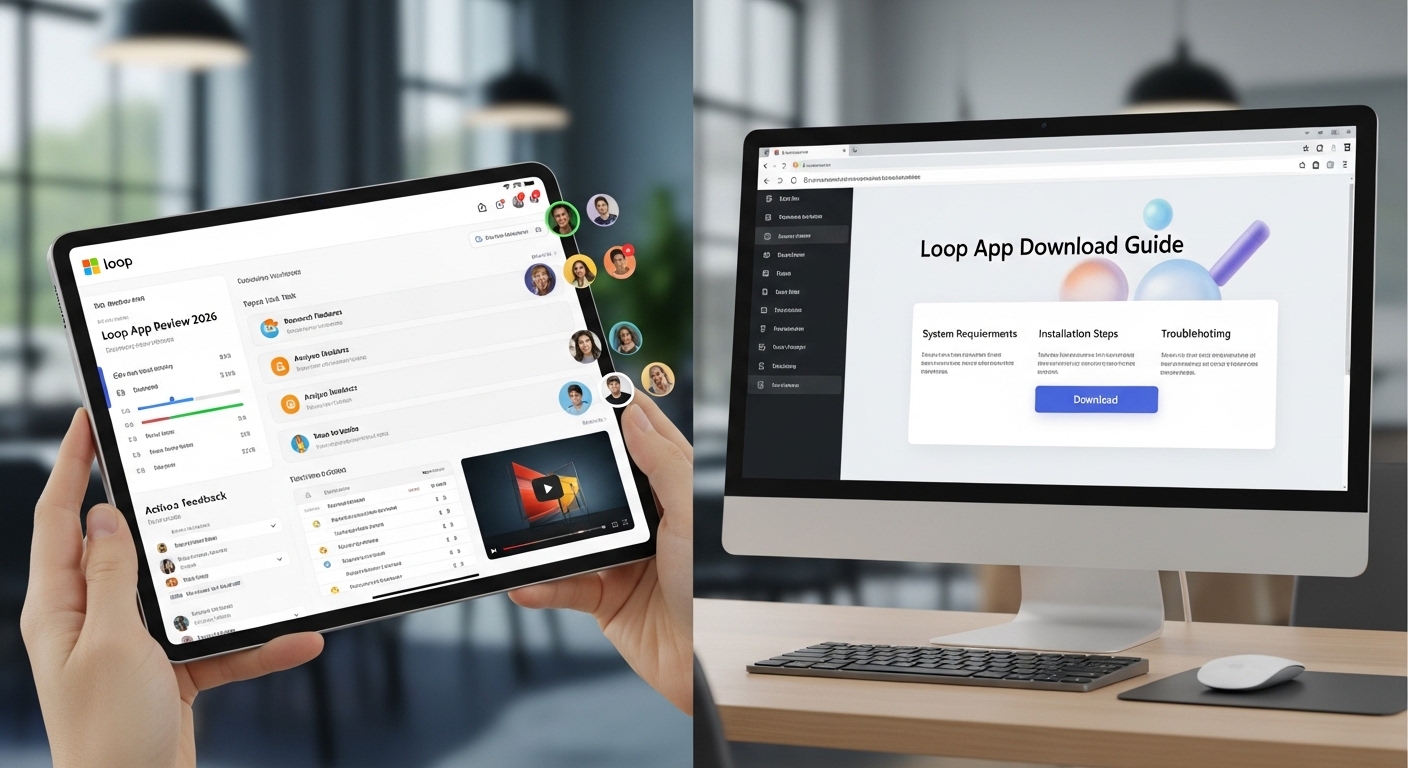
Have you ever worked on a project with friends or team members and felt tired of sending many messages back and forth? Ideas get lost, lists change, and everyone ends up confused. That is why many people now look for better ways to work together in one place. The Microsoft Loop app offers a simple solution for this kind of teamwork. In 2026, this tool continues to grow as part of Microsoft 365. It helps people plan, write notes, and share tasks without extra steps.
This article will explain everything in easy words. You will learn what is Loop app, how its interface looks, its main features, and a clear guide to download Loop app. We will also talk about how it works in real life. Everything flows step by step so you can follow along easily, even if you are new to apps like this.
What Is the Loop App?
The Loop app Microsoft is a helpful tool made for working together. Think of it like a big shared notebook that lives on your computer or phone. You and your friends or coworkers can open the same page at the same time and make changes. Those changes show up right away for everyone.
In simple terms, what is the Loop app? It is a place where you bring ideas, lists, and plans into one spot. Microsoft calls it a co-creation app because it lets many people build things together. For example, imagine planning a school event with your class. One person adds a task list, another writes ideas, and a third adds pictures. All this happens in real time, and no one needs to wait for emails.
Another thing is that its Loop app connects well with other Microsoft tools you might already use, such as Teams or Outlook. This means your work does not stay stuck in one place. Over time, this makes daily tasks feel smoother because everything stays connected.
Main Parts of Microsoft Loop App
The Microsoft Loop app has three important parts that work together nicely. First, there are Loop components. These are like small living pieces of information. A component can be a checklist, a table, or even a short note. You can put one component into a chat message or an email. Then, when someone changes it, the update appears everywhere at once.
For instance, suppose your family wants to plan a picnic. You create a simple shopping list as a component. Your brother adds milk, and your sister adds fruits. Everyone sees the fresh list no matter where they look. This saves time and stops mistakes.
Next come Loop pages. These are flexible sheets where you put many things together. You can write long notes, add pictures, or drag components onto the page. Pages feel open, like a blank canvas, so you can arrange ideas in any order you like. After that, you can link pages or nest them inside each other for bigger projects.
Finally, there are Loop workspaces. These act as big folders for an entire project. Inside one workspace, your team can see all the pages and components related to that work. This means no more searching through different files. You catch up quickly by looking in one spot. That’s why workspaces help teams stay organized from start to finish.
In addition, the app keeps improving. By 2026, it offers better ways to start new projects with smart suggestions and ready-made templates. These templates give you a quick beginning so you do not stare at a blank page for long.
Microsoft Loop App Interface: Clean and Easy to Use
The Microsoft Loop app interface feels calm and simple. When you open the app, you see a clean home screen. On the left side, there is a list of your workspaces and pages. This layout helps you find things fast without feeling crowded.
The main area in the center is where you work. It uses a block style, which means every piece of writing or list is its own block. You can move these blocks around by dragging them with your mouse or finger. If you want to add something new, just type a slash (/) and a menu pops up. From there, choose a table, a checklist, or even a callout box that stands out.
Colors are soft, and the design does not overwhelm your eyes. Many people say the interface looks modern and peaceful compared to older tools. For example, if you are writing meeting notes, you can add an emoji or mention a teammate with the @ sign. Everything flows naturally on the page.
On phones or tablets, the interface changes to fit the smaller screen but keeps the same easy feeling. You can still drag blocks and see live updates. This mobile-friendly design is great when you are traveling or working away from your desk. Next, the search bar at the top lets you quickly find any page or component across all your workspaces.
Because the interface stays simple, beginners learn it fast. You do not need special training. Just start typing, and the app helps you along the way.
Key Features That Make Loop App Useful
One strong feature is real-time teamwork. When two or more people edit the same page, you see their changes appear instantly. This feels like sitting together at one table, even if you are miles apart.
Another helpful part is the connection with Microsoft 365. You can take a Loop component from the app and drop it into a Teams chat or an Outlook email. Later, if you update it in Loop, the version in the email also updates. This keeps information fresh without copying and pasting again and again.
In 2026, the ms loop app also works nicely with AI tools like Copilot. You can ask it to suggest ideas, summarize long pages, or create a first draft of notes. For busy people, this saves hours because the AI understands the context of your work.
Templates are another nice touch. There are ready pages for project plans, brainstorming sessions, or meeting recaps. You pick one, and it already has places for tasks, dates, and names. After that, you just fill in your own details.
You can also add files, links, or even simple drawings. The app supports tables that help with tracking numbers in a basic way. For a family trip, one table might show costs, while another shows who is bringing what.
Over time, these features help reduce confusion in group work. Everyone stays on the same page, literally and figuratively.
How to Download Loop App and Get Started
Getting the Loop app download is straightforward. First, make sure you have a Microsoft account. This can be a personal one or the one from your school or job.
On a computer, open your web browser and go to the official Loop site. Sign in, and you can start using it right in the browser. Many people like to install it as a desktop app for quicker access. On Windows, you can find it in the Microsoft Store and download Loop app there.
For phones, search for “Microsoft Loop” in the Apple App Store or Google Play Store. Download and install the free app. After that, open it and sign in with your Microsoft account. The app will show your workspaces immediately.
If you use it at work, your team leader or IT person might need to turn it on for everyone. Once it is ready, you can create your first workspace in just a few clicks.
Here is a simple step-by-step way to begin:
- Download or open the app.
- Sign in.
- Click to make a new workspace and give it a name, like “School Project.”
- Inside the workspace, create a new page.
- Start adding text or choose a template.
- Invite teammates by sharing a link or mentioning their names.
That’s it. You are ready to work together. The whole process takes only a few minutes.
Real-Life Examples of Using the Loop App
Let us look at how people use Microsoft Loop app in daily life. Suppose you are a student working on a group assignment. You create one workspace for the whole project. Inside, you make pages for research notes, a task list, and a final report draft. Your friends add their parts, and you all see progress live. No more “Who has the latest version?” questions.
At home, a family might use it to plan weekly meals. One page holds the shopping list component. Another page shows recipes. When someone changes the list from the grocery store, everyone at home sees it update. This small change makes life less stressful.
In an office, a small team can track a simple marketing campaign. They put campaign ideas on one page and deadlines on another. Because components sync across apps, they can discuss details in Teams while keeping the master plan in Loop.
These examples show that the app fits many situations. It works for big teams and small groups alike.
Things to Keep in Mind When Using Loop App
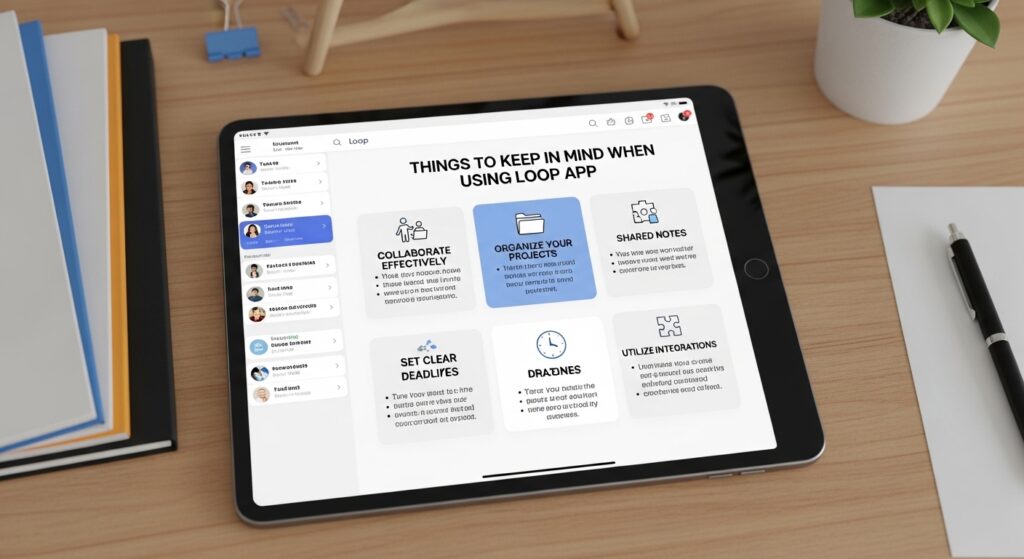
While the app is helpful, it is good to start small. Begin with one workspace and a few pages so you get comfortable. Also, remember to share only with people who need access. This keeps your information safe.
Some users notice that the app shines best when combined with other Microsoft tools. Using it alone is fine, but the full power comes when you move components between apps.
If you face any small issues, the app has a help section where you can find quick answers or send feedback to Microsoft.
Common Questions About Microsoft Loop App
Here are answers to some questions people often ask.
What is the difference between Loop and other note apps?
Loop focuses on live teamwork and moving pieces between apps. Other tools may feel more personal, while Loop brings groups together easily.
Can I use Loop app without paying?
Basic use comes with many Microsoft accounts. For extra features or bigger teams, it connects to Microsoft 365 plans.
Is the Loop app good on mobile phones?
Yes. The mobile version lets you read, edit, and add new things while you are away from your computer.
Does it work for video or other media?
You can add links to videos or simple images, but it is mainly for text, lists, and planning, not heavy video editing.
How secure is my information in Loop?
Microsoft uses strong protection, especially when you use a work or school account. Always follow your organization’s rules for sharing.
Can beginners learn it quickly?
Most people feel comfortable after one or two short sessions because the design is clear.
Will it replace my other Microsoft apps?
No. It works alongside them and makes them better by adding live collaboration.
Final Thoughts on the Microsoft Loop App in 2026
The Microsoft Loop app has grown into a useful tool for anyone who works with others. Its clean interface, live components, flexible pages, and shared workspaces help turn messy group projects into smooth teamwork. From students to families to office teams, many people find it makes daily planning simpler and more fun.
As technology moves forward, tools like this keep changing to fit how we live and work. Taking time to try the Loop app might open new ways for you to stay organized and connected.
Start with a small project today, and watch how ideas come together more easily.
Disclaimer:
This article provides general information based on publicly available details about the Microsoft Loop app as of 2026. Features and availability may vary depending on your account type, region, and updates from Microsoft. It is not official advice from Microsoft. Always check the latest information directly from Microsoft sources before using any app for important work. This content is for educational purposes only and does not promote or endorse any specific product or service.
Explore More:
I’m a Celebrity Voting App (2026 Guide): How to Download, Register & Vote for Free
Sky Glass App Review 2026: Features, Download, Firestick Setup & Download Code
About the Author