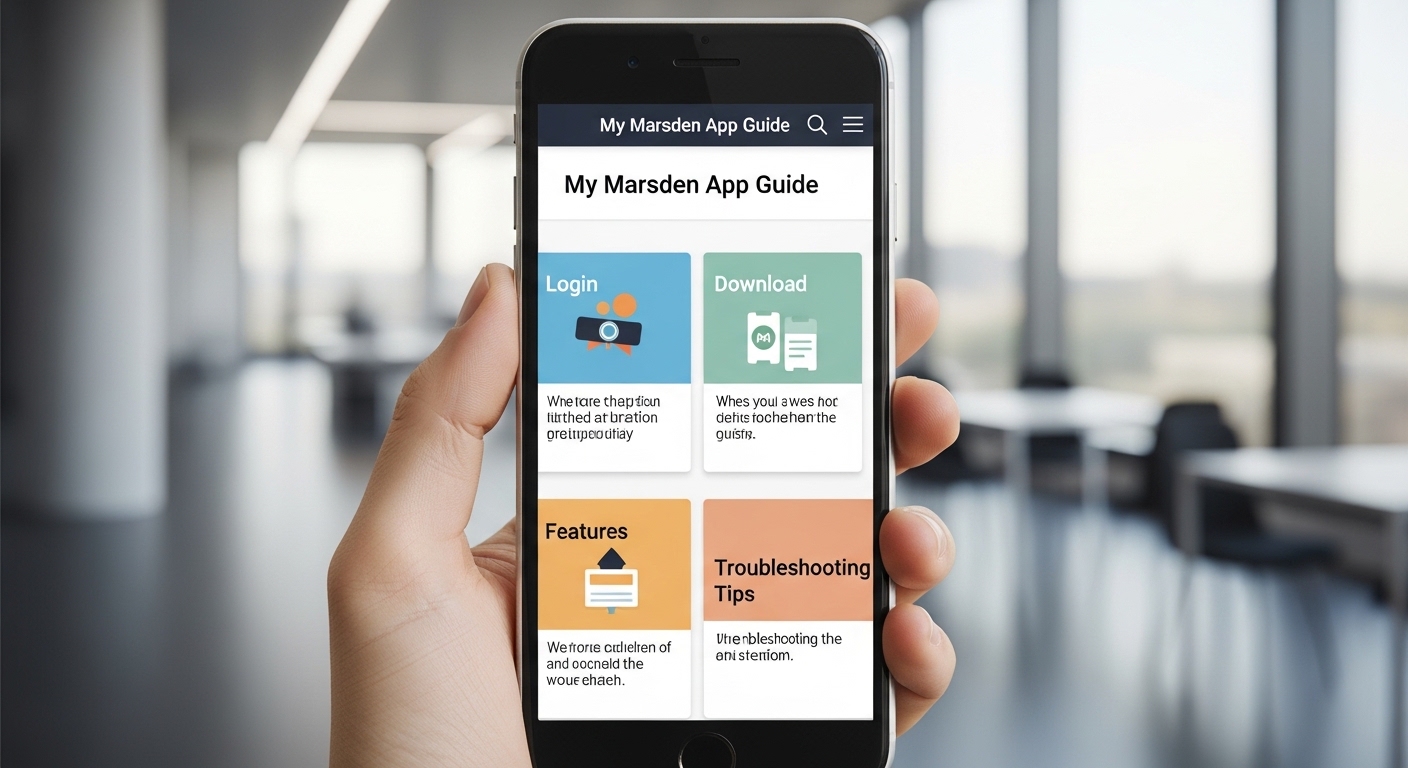
Many people who receive care at The Royal Marsden want an easy way to check their health information. That is why the My Marsden app helps so much. It lets patients see parts of their healthcare record right from a phone, tablet, or computer.
You can look at appointment times, read messages from your care team, and feel more in control of your visits. Because the app connects you directly to your records, it saves time and reduces worry. In 2026, more patients use digital tools like this every day. This guide explains everything in simple steps so you can start using the My Marsden app with confidence.
What Is the My Marsden App and Why Does It Matter?
The My Marsden app is a free patient portal created for people at The Royal Marsden NHS Foundation Trust. It works as both a mobile app and a website. After you sign up, you can access important health details anytime you need them.
For example, imagine you just left a doctor visit and want to read the summary again. With the app, you open it on your phone and see the notes right away. This means you do not have to wait for a letter in the post.
Another thing is that the app keeps your information safe with strong protection. Only you and your healthcare team can see it. Over time, using the My Marsden app helps you stay better connected to your care. You feel more prepared for appointments because everything is in one place. Many patients say it makes their hospital experience smoother and less stressful.
How to Download the My Marsden App
Downloading the app is the first simple step. The My Marsden app uses the MyChart platform from Epic Systems. You do not download a separate app just for Marsden. Instead, you get the general MyChart app and then choose MyMarsden inside it.
Start by opening the App Store on your Apple phone or tablet. If you have an Android device, open the Google Play Store. Next, search for “MyChart”. The correct app comes from Epic Systems Corporation. Look for the official logo to make sure you pick the right one.
After you find it, tap the download button. The app is free, so there is no cost. Once it finishes installing, open the app. Read and accept the terms and conditions that appear. This part is quick and important for safety.
After that, select “MyMarsden” from the list of options shown. The app will take you to the sign-in screen. That is how you connect it to your Royal Marsden records. If you prefer the website, you can visit it on any computer without downloading anything. Just go to the official MyMarsden page through the hospital website and log in there.
How to Sign Up and Create Your Account
Before you can use the features, you need to register. Most patients get an invitation from the hospital after they start receiving care. If you have not received one yet, ask your care team during your next visit.
When you are ready to sign up, open the MyChart app or go to the website. You will need some basic details, such as your name, date of birth, and contact information that matches your hospital record. This step makes sure the right information connects to you.
After entering your details, the system may ask you to verify your identity. You might receive a code by email or text message. Enter that code to continue. This extra check keeps everything secure.
Once your account is active, create a strong password that you can remember but others cannot guess. Use a mix of letters and numbers if possible. After that, agree to the MyMarsden terms of use. Now your account is ready, and you can begin exploring.
In addition, some patients need proxy access for family members or carers. This allows a trusted person to help view the records. You control this and can turn it on or off anytime.
Easy Steps for My Marsden App Login
Logging in should feel quick and natural. First, open the MyChart app on your phone or tablet. Select MyMarsden from the options. On the sign-in screen, type your username and password.
If you use the website, go to the MyMarsden login page and enter the same details. After you log in, the home screen shows a clear overview. You might see upcoming appointments or recent messages at the top.
For extra safety, the app may ask for two-step verification sometimes. This means it sends a code to your phone or email. Enter the code, and you are in. That is why it is good to keep your contact details up to date in the app.
Next time you log in, the app remembers some information to make it faster. But always log out if you share your device with others. This small habit protects your private health details.
Key Features of the My Marsden App
The My Marsden app has many helpful tools that make daily care easier. One main feature lets you view your appointment times and details. You can see when your next visit is and what to prepare for it. For example, if blood tests are needed, the app shows that clearly.
Another useful part is reading after-appointment summaries and clinical letters. These come straight to the app, so you can review what the doctor said without waiting. You can also check your prescribed medication list. This helps you remember when to take pills or order refills.
Test results appear in the app too. Most results show up after your doctor reviews them. You can read them at home and write down any questions for your next visit.
In addition, you can send messages directly to your healthcare team. Instead of calling during busy hours, type your question in the app. Many teams reply within a few days. This feature is great for simple updates or clarifications.
Video appointments are another convenient option. Join them easily from home through the app. You save travel time and still talk face to face with your doctor.
You can also complete pre-visit forms in the app before you arrive. This means less paperwork when you reach the hospital, giving you more time to speak with your care team.
Proxy access and sharing options give you control. Generate a one-time code to share your record safely with another doctor, such as your GP. Or allow a family member to view parts of your information if you need help.
Over time, these features add up to better communication and fewer surprises during treatment.
Useful Tips for Getting the Most from the My Marsden App
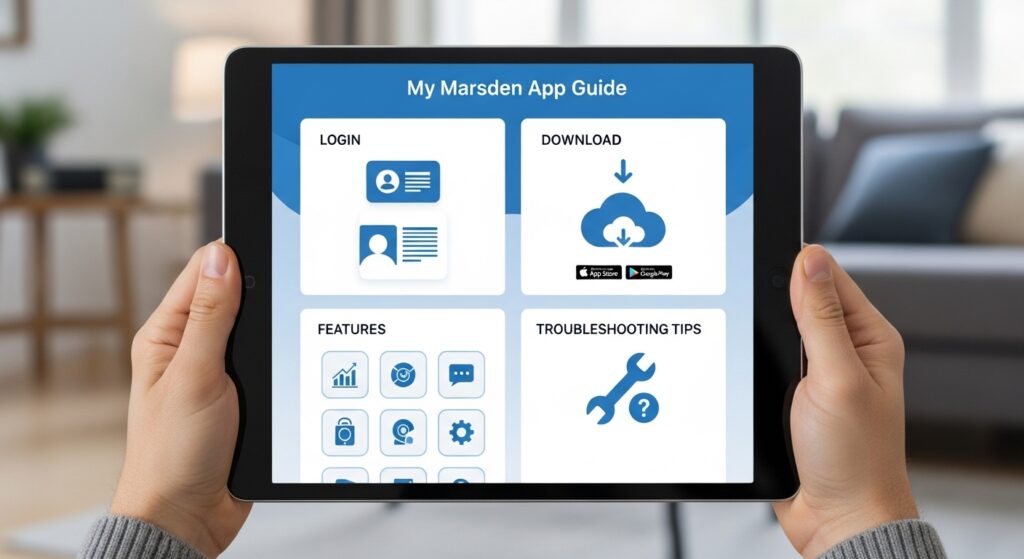
To use the app well, keep your profile information current. Update your phone number and email if they change. This ensures messages and codes reach you quickly.
Check the app regularly, perhaps once a week. New results or messages might appear, and you do not want to miss them. Set a gentle reminder on your phone if that helps.
When you read test results or letters, take notes if something is unclear. Bring those notes to your next appointment. Many patients find this helps them ask better questions.
Another tip is to explore the settings menu. You can adjust notifications so the app alerts you only for important things. This keeps your phone calm but still keeps you informed.
If you travel or stay away from home, the app works on Wi-Fi or mobile data. Just make sure your connection is safe when viewing private information.
Common Troubleshooting Tips for the My Marsden App
Even with a good app, small problems can happen. Here are simple ways to fix them.
If you forget your password, use the “forgot password” link on the login screen. The system sends a reset code to your email or phone. Follow the steps to create a new password.
When the app will not open or crashes, first close it completely and try again. If that does not work, check for updates in the App Store or Google Play. New versions often fix small bugs.
If you see a message about cookies or JavaScript on the website, make sure your browser allows them. Most modern phones handle this automatically.
Login problems sometimes happen because of old contact details. Update your email or phone in your hospital record first, then try logging in again.
For technical help with account setup or password reset, contact the MyMarsden Helpdesk. They know the system well and can guide you kindly.
Another common issue is slow loading. Try switching to a stronger Wi-Fi connection or closing other apps on your phone. This gives the My Marsden app more power to run smoothly.
If you still face trouble after these steps, reach out to your hospital care team. They can check if anything needs updating on their side.
In 2026, the team continues to improve the app with small updates. These changes make the experience better for everyone over time.
Staying Safe and Secure with Your My Marsden App
Your health information is personal, so safety matters. Always use a password that is not easy for others to guess. Change it every few months if you can.
Never share your login details with anyone except through the official proxy access feature. The app uses strong encryption to protect your data.
When using public Wi-Fi, be careful about viewing sensitive results. Wait until you are on a private connection if possible.
Log out after each session, especially on shared devices. This simple action adds another layer of protection.
The hospital follows strict rules to keep information safe. You can feel confident using the My Marsden app because of these careful steps.
Final Thoughts on Using the My Marsden App
Learning to use the My Marsden app takes just a little time, but it brings real benefits. You gain quick access to appointments, messages, results, and more. Because everything stays in one safe place, you feel more organized and involved in your care.
Start with downloading and logging in. Then explore one feature at a time, such as checking appointments or sending a message. Over time, the app becomes a helpful daily tool.
Remember to keep your information updated and reach out for help when needed. Many patients now enjoy smoother hospital visits thanks to this connection.
This guide shares clear steps and friendly tips to help you begin. Take it one day at a time, and you will soon feel comfortable with the My Marsden app.
Disclaimer:
This article provides general information based on publicly available details about the My Marsden patient portal and is for educational purposes only. It is not official advice from The Royal Marsden NHS Foundation Trust. For the most accurate and up-to-date instructions, always check the official Royal Marsden website or contact their MyMarsden Helpdesk directly. Features and processes may change over time. This content does not replace professional medical or technical support.
Explore More:
Micro Learning Apps: Best Free & Paid Apps for Quick Learning (2026)
Best Health and Safety App (2026) – Workplace Compliance, Inspections & Reporting
About the Author