The SumUp app helps many people accept payments from customers right on their phones. It makes business easier because small shops, market sellers, and service workers can take card payments quickly. This guide explains everything in simple steps. You will learn how to download the SumUp app, set it up, log in, connect a card reader, make payments, and fix common problems. These steps work well for beginners. After that, you can start using the app with confidence. Many people find it useful because it saves time and keeps records clear.
How to Download the SumUp App on Your Phone
First, you need the right phone to use the SumUp app. It works on most Android phones and iPhones. For Android, your phone should run a recent version of the system. For iPhones, you need at least iOS 14 or newer. This means older phones might not work well. Next, open the Google Play Store if you have an Android phone. Type “SumUp Payments and POS” in the search bar. The official app comes from SumUp. Tap the green install button. The download takes only a few minutes because the app is free and small. After that, the app appears on your home screen.
On an iPhone, open the App Store instead. Search for the same name, “SumUp Payments and POS.” Tap get and install it. This process feels the same for both phones. Another thing is that you must allow the app to use Bluetooth and location services later. These permissions help the app connect to card readers safely. For example, imagine you sell fruits at a market. You download the app in the morning. Then you can start taking payments by lunch. Over time, keeping the app updated helps it run smoothly because new features come out each year.
After you download the SumUp app, open it once. It may ask for basic permissions right away. Grant them because the app needs them to work properly. This step prepares everything for setup. In addition, check your internet connection first. Wi-Fi or mobile data makes the download faster and safer.
Creating Your Account and Setting Up the SumUp App
Now that the app sits on your phone, you need an account. This part takes a little time but feels simple. Open the SumUp app. You will see a sign-up button. Tap it and enter your email address. Choose a strong password that you can remember. After that, the app asks for your business name and country. Pick your country because rules change by location. Some places need extra details like a business address.
Next, verify your email. Check your inbox and click the link SumUp sends. This step proves the email belongs to you. That’s why it keeps everything secure. In addition, you might need to add a phone number for extra safety. Over time, the app may ask you to confirm your identity with a photo of your ID. This happens because it helps unlock higher payment limits. For example, a new cafe owner signs up and adds her shop details. Soon she can accept larger payments without worry.
Another thing is to explore the home screen after signup. You see options to add items to your catalog. Think of it like a digital menu. You can list products and prices. This means customers see clear choices during payments. Also, the app shows sales reports later. These reports help you track money easily. Because the setup builds step by step, you never feel lost. Finish this part before you move to login because a complete account works best.
How to Log In to the SumUp App Every Time
Logging into the SumUp app happens fast once your account exists. Open the app on your phone. You see fields for email and password. Type them carefully. After that, tap the login button. The app remembers you sometimes, so you might not type every time. This feature saves time because busy days go quicker.
If you forget your password, tap the forgot password link. SumUp sends a reset email. Open it and create a new password. Next time, use the new one. In addition, always check your internet before login. Without connection, the app cannot reach the servers. For example, a taxi driver logs in each morning before work. He enters details quickly and starts his day.
Another thing is that the app might ask for a code from your email sometimes. This extra check keeps your account safe from others. That’s why security matters so much. Over time, you get used to the login flow. It becomes a habit like opening your shop door.
Connecting Your SumUp Card Reader to the App
Many people use a SumUp card reader with the app. It lets customers pay with cards or phones. First, turn on your card reader. Press the power button on the side. A light shows it works. Next, open the SumUp app and log in. Tap the profile icon at the top. Look for the card reader section. Turn on the toggle that says accept payments with card reader.
After that, tap connect card reader. The app searches for the device. A three-digit number appears on your phone screen. Check the back of your card reader. The last three numbers of its serial number should match. If they match, tap connect. Confirm on the reader by pressing the green button. This pairing uses Bluetooth. That’s why you need Bluetooth turned on in your phone settings.
For example, a flower seller pairs her reader in five minutes. Now customers can tap their cards easily. In addition, some readers update their software during first connection. Let it finish because the update makes payments smoother. Over time, the reader stays connected even if it sleeps. You can disconnect and reconnect later if needed. Another thing is to keep the reader charged. Low battery causes problems. This connection step opens the door to real payments.
Making Payments with the SumUp App
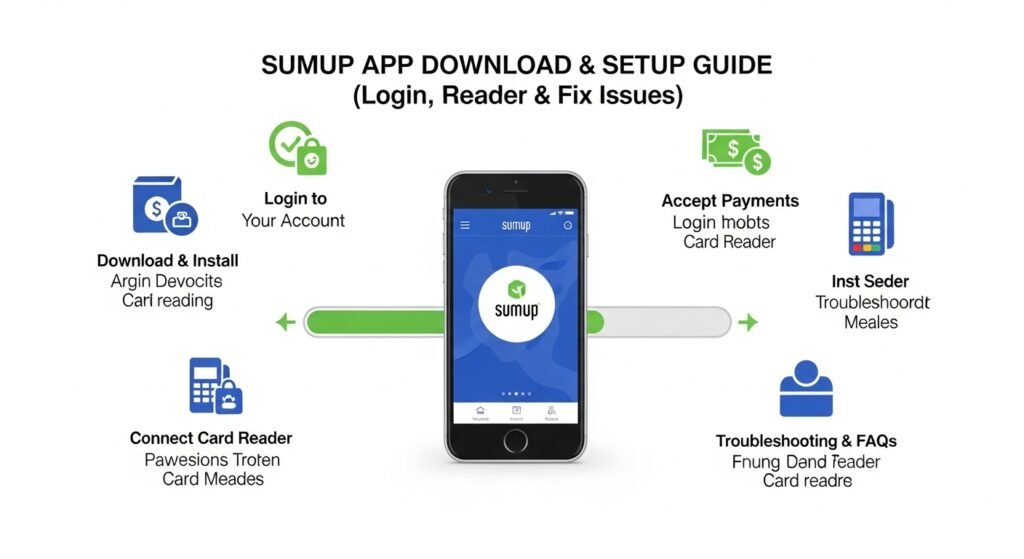
Once everything connects, taking payments feels easy. Open the SumUp app and log in. You see a number pad on the screen. Type the amount the customer owes. Double-check the number because mistakes happen. After that, choose how the customer pays. If you use a card reader, it shows ready. The customer taps, inserts, or swipes the card. For chip cards, they enter a PIN on the reader.
Contactless payments work fast too. The customer holds their phone or card near the reader. This means no need to hand over cards. Next, the app shows a success message. You can send a receipt by email or text. Customers like this because they get records right away. For example, a bakery owner charges ten dollars for bread. The customer taps a card, and the sale ends in seconds.
Also, the app supports Tap to Pay on some phones without a reader. You turn on this feature in settings. It uses the phone itself for contactless payments. In addition, you can create payment links or invoices inside the app. Send them to customers who cannot come in person. Over time, these options help your business grow because more ways exist to get paid.
Using the Card Reader for Smooth Transactions
The SumUp card reader works closely with the app. It handles chip, PIN, and contactless payments. After pairing, place the reader near the phone. Enter the amount in the app as before. The reader wakes up and shows instructions. Customers follow the screen. This teamwork makes checkout quick.
Another thing is that some models work alone without the phone nearby. They connect to Wi-Fi or use their own data. Check your reader type because features differ slightly. For instance, a street vendor uses the reader at a busy fair. Customers pay fast, and lines stay short. That’s why the card reader helps on busy days. Also, keep the reader clean and away from water. Simple care keeps it working longer.
Common Problems with the SumUp App and Easy Fixes
Even good apps have small problems sometimes. One common issue is the card reader not connecting. First, turn Bluetooth off and on in your phone settings. Close the SumUp app completely. Then reopen it and try connecting again. This simple reset fixes most Bluetooth troubles. Next, make sure the reader has enough charge. Plug it in for thirty minutes if needed.
Another problem happens during login. If the app says wrong password, check your typing. Or reset the password through email. In addition, weak internet stops login. Move to a better signal area. For payments that fail, retry the same transaction. Sometimes servers have short delays. Check the amount too because very small payments might not work.
App crashes feel frustrating. Update the SumUp app in your store. Also update your phone system. On Android phones, clear the app cache in settings. This step refreshes everything. Over time, you learn these quick fixes. For example, a shop owner once could not connect her reader. She toggled Bluetooth and it worked right away. That’s why staying calm and following steps helps.
Firmware updates on the reader can take time. Wait until they finish. Do not turn off devices during updates. Also, grant all permissions the app asks for. Location and NFC help payments work. If problems continue, check your account status inside the app. Verify your profile if limits appear. These steps solve most issues because they address common causes.
Tips to Use the SumUp App Better Every Day
You can make the SumUp app work even better with small habits. Add your products to the catalog early. This saves time later because you tap items instead of typing prices. Track your sales each evening. The reports show what sells well. In addition, back up your phone regularly. This protects your business data.
Test a small payment with your own card before busy hours. This check confirms everything runs fine. Another thing is to keep your app and reader updated. New versions fix bugs and add features. For instance, a delivery person tests the app before leaving home. He avoids problems on the road. Over time, these tips turn the SumUp app into a reliable helper.
Conclusion
The SumUp app offers a clear way to handle payments, login, card readers, and more. You learned how to download it, set up an account, log in safely, connect hardware, take payments, and fix issues along the way. Each step builds on the last one because the app works as a complete system. With practice, you will feel comfortable using every part. Remember to check your local rules because services vary by country. Stay patient with new technology, and it will support your daily work.
This guide gives you the tools to start strong and grow your business step by step.
Disclaimer: This article is for informational purposes only and is based on general publicly available information as of 2026. It is not affiliated with SumUp or any official company sources. Steps may vary depending on your device, location, app version, or country availability. For the most accurate instructions, always refer to the official SumUp support website or contact their customer service directly. The author and publisher are not responsible for any issues that may arise from following this guide.
Explore More:
Spond App Download, Login & Not Working Fix (Android & iPhone Guide)
Harvester Restaurant App – Download, Login, Menu, Offers & Rewards Guide
About the Author