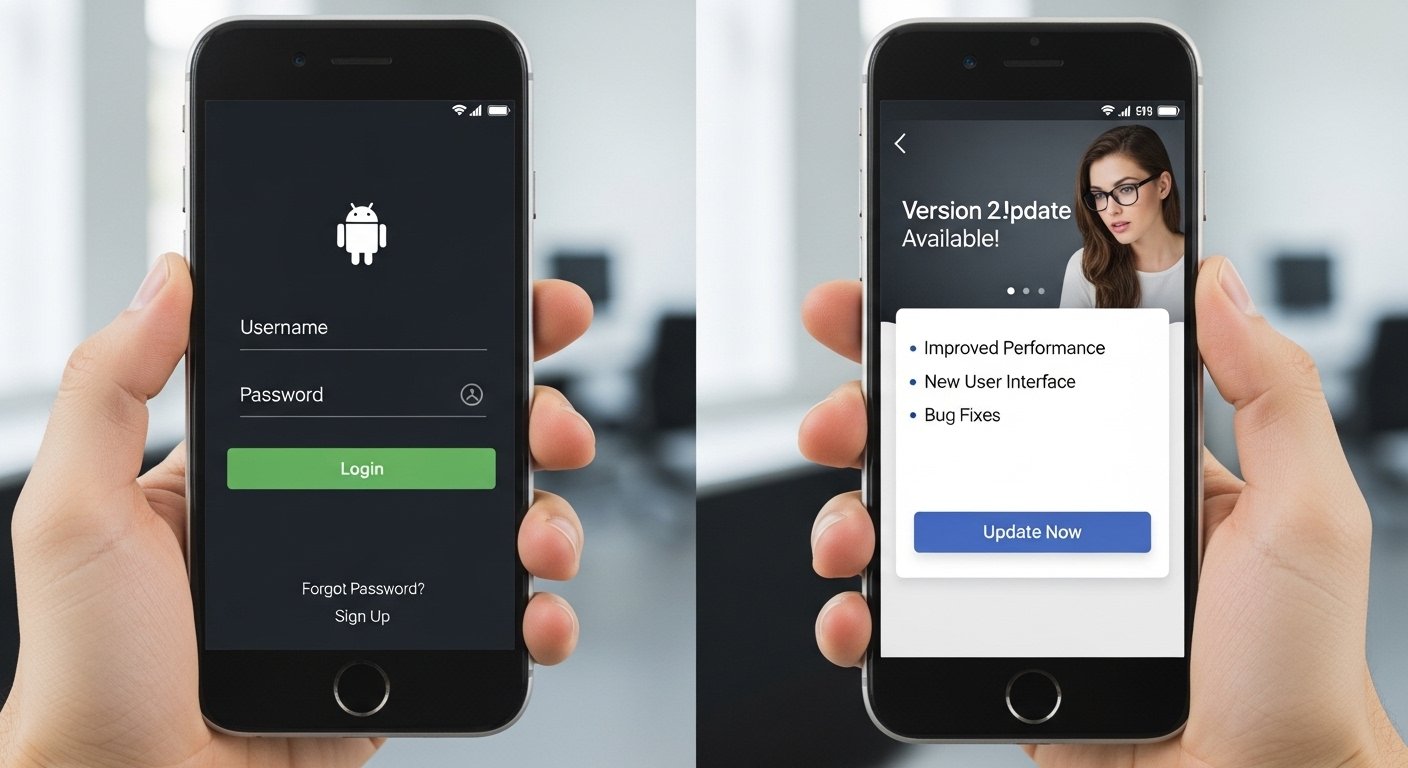
Many people today carry their phones everywhere they go. They use them to talk with family, check messages, and stay connected online. Because of this, it helps a lot to manage your phone plan right from the phone itself. The 1p mobile app makes this easy and simple. It lets you check your balance, see how much data you have used, and buy more credit whenever you need it. This means you never have to worry about running out of minutes or data at a bad time. Over time, more people have started using their phones for everything, so having quick access to your account feels very helpful. In this article, you will learn everything step by step. You will find out how to get the 1p mobile app on Android and iPhone, how to log in safely, how to set it up for the first time, and what is new in the latest update. Each part builds on the last one, so you can follow along like a friendly story. After you finish reading, you will know exactly what to do next.
How to Get the 1p Mobile App on Your Android Phone
First, you need to understand that the 1p mobile app works as a shortcut on your home screen. This shortcut acts just like a real app because it opens your account page right away. Because many phones use Android, the steps are clear and quick. Start by opening the Chrome browser on your Android phone. Next, go to the website 1pmobile.com in the address bar at the top. After that, log into your account if you already have one. This means typing your phone number or email and your password. Once you are inside your account area, look for the menu button. It shows three little dots in the top right corner. Tap those dots gently. A small list will pop up. From that list, choose the option called “Add to homescreen.” A box will appear asking for a name. Type “1pMobile” because that name is short and easy to remember. Tap add or confirm, and the icon will appear on your home screen. Now you can tap it any time and go straight to your account. This process uses almost no extra space on your phone because it is not a full download from a store. In addition, you can do this on Wi-Fi to save your mobile data. For example, if you are at home and have good Wi-Fi, finish the steps there first. After you add the shortcut, test it once to make sure it opens fast. That is why this way feels smooth and natural for Android users everywhere.
How to Get the 1p Mobile App on Your iPhone
Next, the steps for iPhone are a little different but still very easy. Apple phones use Safari as their main browser, so you will work with that. Begin by opening Safari on your iPhone. Then type 1pmobile.com in the address bar and press go. Log into your account with your phone number or email plus your password. Once you see your account page, look at the bottom of the screen for the share button. It looks like a square with an arrow pointing up. Tap that share button. A menu will slide up from the bottom. Scroll a little until you see “Add to Home Screen.” Tap it. A new box will ask you to name the shortcut. Write “1pMobile” again so it matches your other devices. Tap add in the top right, and the icon will now sit nicely on your home screen. This shortcut works like an app because it remembers you are logged in and loads your page quickly. Also, you can move the icon anywhere on your screen by pressing and holding it for a second. Many people like this because it feels clean and simple. For example, if you check your balance every morning, the icon is right there beside your other favorite apps. After adding it, open the shortcut one time to check that everything loads correctly. In this way, both Android and iPhone users get the same helpful experience without extra steps.
How to Login to the 1p Mobile App for the First Time
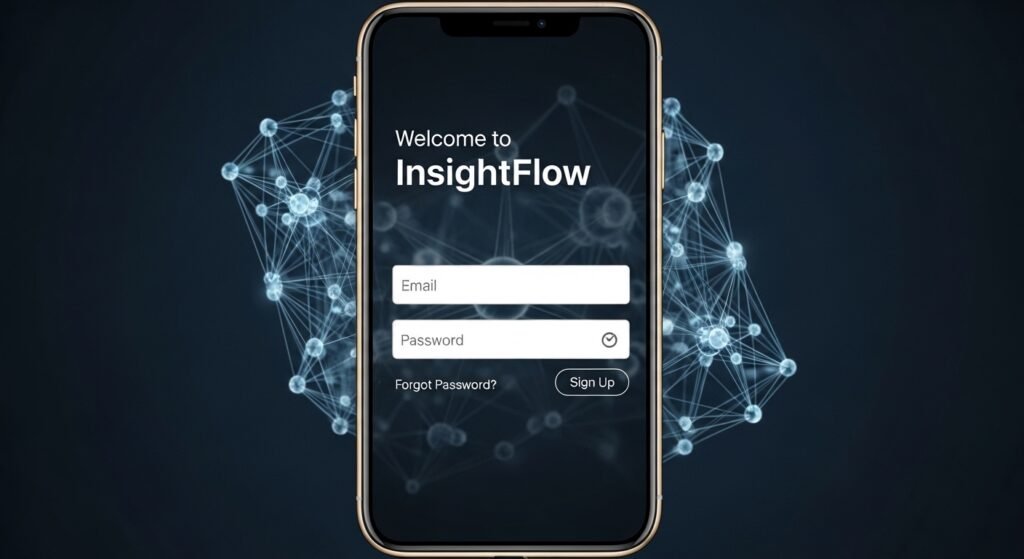
Now that you have the shortcut on your home screen, logging in is the next important part. Open the 1p mobile app shortcut you just added. The login screen will appear right away. Type your 1pMobile phone number or the email address you used when you signed up. After that, enter your password carefully because it must match exactly, including capital and small letters. There is also a small box that says “Keep me logged in on this device.” If you check that box, the app will remember you for future visits. This saves time because you do not type your password every single day. Because security matters, the system may ask for extra confirmation sometimes. For instance, it might send a code to your phone by text. Type that code quickly to finish logging in. If you forget your password, there is a simple link that says “Forgot password.” Tap it, and the system will guide you to reset everything safely. After you log in the first time, the app shows your main dashboard with balance, data left, and recent activity. This means you can see important numbers at a glance. Over time, you will get used to the layout because it stays the same.
Setting Up the 1p Mobile App and Your Account
Setting up the 1p mobile app feels exciting because it connects everything together. If you are a new user, you first need a SIM card from the service. After you receive the SIM in the mail, put it into your phone. Turn the phone off and on again so it can find the network. Next, open the 1p mobile app shortcut and create your account if you do not have one yet. The screen will ask for your details like name, email, and phone number. Fill each part honestly because this helps the system keep your information correct. After that, choose a strong password that you can remember but others cannot guess easily. Many people use a mix of letters, numbers, and symbols for extra safety. Once your account is ready, the app will show how to activate your SIM. Follow those steps carefully, and soon you will see your balance appear. Another thing is checking your data settings. Go to your phone’s main settings, find mobile data or network, and make sure the right settings are turned on so you can use calls, texts, and internet. For example, if data is not working at first, the app can guide you to fix it fast. In addition, you can add more SIM cards for family members later on. This means one account can manage everything in one place. That is why setup feels complete and useful right from the start.
What You Can Do Inside the 1p Mobile App Every Day
After setup, the real fun begins because the app lets you handle many things quickly. Open the app and look at your balance at the top. You will see how much credit you have left. Next, check your usage section to see minutes, texts, and data you have used this month. This helps you plan better because you know when to buy more. For example, if you are traveling and using maps a lot, you can see data numbers drop and buy a boost right away. The app also shows recent activity, so you can spot any surprises early. In addition, you can buy data boosts of different sizes. Some are small for light use, while others are big for heavy streaming or video calls. Tap the buy section, choose what you need, and pay safely inside the app. Over time, you learn which boosts work best for your habits. Another helpful part is managing multiple SIMs if your family shares one account. You can turn services on or off for each one without calling anyone. Because everything updates live, changes show up instantly. This smooth flow makes daily life easier because you stay in control from your phone.
Tips to Use the 1p Mobile App Wisely and Avoid Common Mistakes
Now you know the basics, so here are some friendly tips to make everything better. Always use Wi-Fi when you first add the shortcut because it saves your mobile data. Also, keep your password safe and never share it with others. If you see a strange message asking for your details, close the app and check the official site instead. For example, some people click links in texts that look real but are not. That is why you should only open the app from your home screen shortcut. Another tip is to set usage alerts inside the account. This way, the app can send you a message when your data is getting low. In addition, check the roaming section if you travel to other countries because the service works in many places without extra cost. Over time, these small habits help you save money and avoid surprises. If something feels confusing, the app has a help area with clear answers. Many users say that reading one tip each week makes the whole experience smoother.
What Is New in the Latest Update of the 1p Mobile App
The 1p mobile app keeps getting better because the team listens to users and adds helpful changes. In the latest update around early 2026, the dashboard loads faster so you see your balance right away. Also, the data tracking tool is clearer with simple charts that show daily use. This means you can spot which apps on your phone use the most data without guessing. For example, if video calls use a lot, you can decide to switch to Wi-Fi next time. In addition, new options for eSIM support appeared, so modern phones can activate service without a physical card. The roaming information now lists more countries and shows fair-use limits in plain words. Because of these updates, managing your plan feels even more natural. The login process also got small improvements for better security without extra steps. Users who check the app often notice these fresh touches right away. Over time, such updates keep the experience fresh and easy for everyone.
Keeping Your Information Safe While Using the 1p Mobile App
Safety matters a lot when you use any phone tool, and the 1p mobile app helps you stay protected. Always download or add the shortcut only from the official website. Never use links from unknown messages because they might lead to fake pages. After logging in, look for the lock symbol in the address bar to know the connection is secure. In addition, turn on notifications so the app can warn you about unusual activity. For example, if someone tries to log in from another phone, you will know quickly. Another thing is to review your recent activity every week. This simple habit catches problems early. Because the service cares about your privacy, it uses strong protection on its side too. That is why most users feel calm and confident after they follow these steps.
Conclusion
In the end, the 1p mobile app brings your phone plan right into your hand in a simple way. You learned how to add the shortcut on Android and iPhone, how to log in safely, how to set everything up, and how to use daily features like checking balance and buying boosts. You also saw tips to avoid mistakes and details about the latest updates that make things faster and clearer. Because everything connects smoothly, you can manage your service without stress. Take a moment now to add the shortcut and explore your account. Over time, you will discover even more ways it helps your daily life. Stay curious, check your usage often, and enjoy the freedom of simple mobile management.
Disclaimer:
This article is for informational purposes only and is not affiliated with or endorsed by any company or service. Information is based on publicly available details as of 2026 and may change. Always verify the latest steps directly from the official website for accurate and up-to-date guidance. This content aims to help readers understand general processes without promoting any products or services.
Explore More:
Thursday App – Download, Login, Features & How It Works (2026 Guide)
Dr IQ App Download (Android & iPhone) – Login, Registration & Full Guide
About the Author